
Qwen-Image-2.1: a complete guide to Qwen’s unified image generation and editing model
Qwen-Image-2.1 is the Qwen team's unified image generation and editing model, released with open weights on September 20, 2026. Its distinguishing features are native transparency, editing with up to ten reference images, flexible local edits and refined typography, in a compact 7B visual generator. This guide covers what it does and how to prompt each capability.
Log in and try Qwen-Image-2.1
Qwen-Image-2.1 runs in Prism, SpyGlass, Vector, Unified Editor and PirateDiffusion through the omni-qwen21 workflow, which supports text-to-image, image-to-image with up to six references, and Qwen-Image-2.1 LoRAs.
Graydient plans are compatible with Qwen-Image-2.1
Run Qwen-Image-2.1 alongside more than 30,000 open image and video models on flat-rate GPU, with no credits and no per-image fees.
Already a member? Log in to My Graydient.
What is Qwen-Image-2.1?
According to the Qwen team, the visual generation component has 7B parameters across 32 single-stream DiT layers. A mixed-granularity attention design with prefix KV-cache reuse keeps inference efficient, particularly when editing with several input images. The release focuses on four improvements:
- Compact and efficient: strong quality at low computational cost.
- Native transparency: generate regular or RGBA images from text, edit transparent layers, and extract subjects from photographs, all in one model.
- Versatile editing: up to 10 reference images, local edits via circles, painted annotations or separate masks, and identity preservation for people and products.
- Refined aesthetics: improved typography, portrait lighting and fine detail.
ComfyUI's launch post adds that generation runs natively at 2048×2048 rather than being upscaled, and that one checkpoint handles both generation and editing.
Native transparency (RGBA)
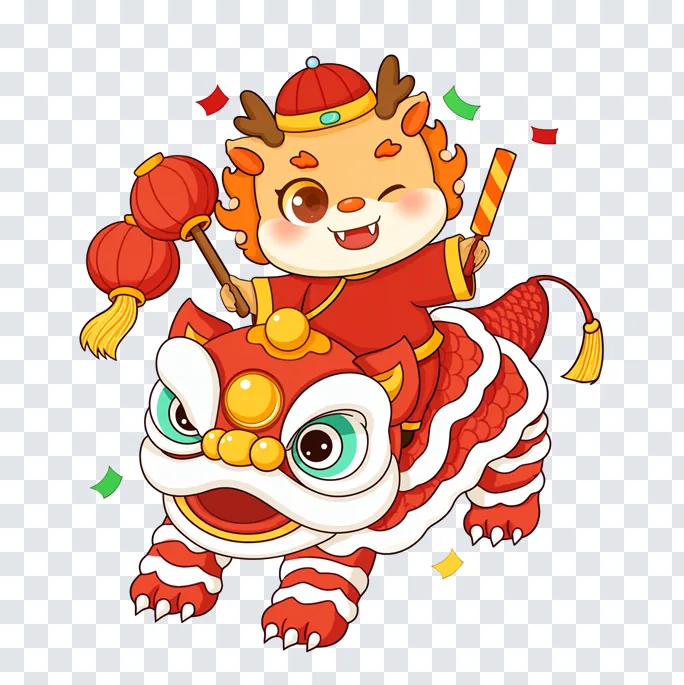
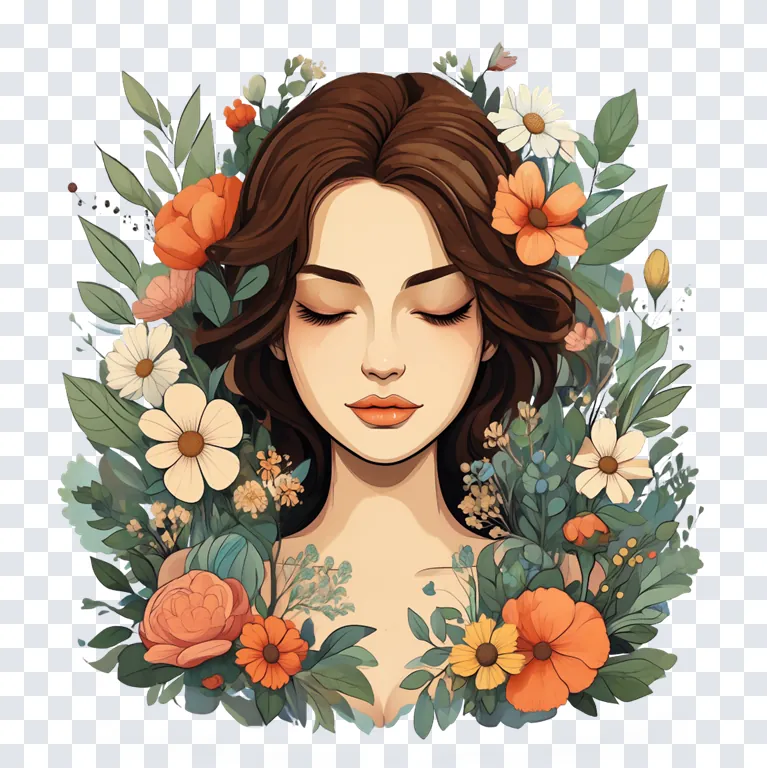
The Qwen team first offered transparent output in a dedicated model, Qwen-Image-Layered (December 2025). Qwen-Image-2.1 integrates it into the unified model: the prompt decides whether the output is a regular image or one with an alpha channel. ComfyUI notes that sprites, logos, icons and product cut-outs come out ready to composite, with no background-removal step. The model card recommends this phrasing:
This is an RGBA image with transparency. A cute cartoon dragon sticker. The image has alpha channel and the background is transparent.
How to prompt Qwen-Image-2.1
1. Put the text you want in quotation marks
Typography is a focus of this release. The model card's own text-to-image example asks for a sign with exact wording:
A neon shop sign that reads "QWEN IMAGE 2.1", rainy night, reflections on wet pavement
2. Edit with a direct instruction
For single-image edits, describe the change plainly. This is the model card's editing example:
Change the background to a sunset beach
3. Combine references and give each one a job
With several inputs, refer to each reference by number and state what it contributes and what must stay unchanged. The Qwen team's examples include a group photograph from six individual portraits, a complete outfit from five product images, and a furnished room from ten furniture images.
The character from Image 1 is sitting in the armchair from Image 2, in the living room from Image 3. Keep the character’s face, hairstyle and clothing unchanged. Soft afternoon window light from the left.
4. Mark regions with circles, paint or a mask
Local edits can be targeted three ways: coloured circles drawn on the input, painted annotations, or the original image plus a separate mask (which preserves the full input). The Qwen team's circle example addresses three regions in one instruction:
Remove the metal watch in the blue circle, change the hair in the red circle to black, and replace the area in the green circle with gray short-sleeved linen pajamas.
5. Let a prompt enhancer expand short requests
The Qwen team published dedicated prompt-rewriting models, Qwen-Image-2.1-PE-T2I and PE-I2I. The text-to-image rewriter turns a brief request in any language into a detailed English prompt plus a recommended aspect ratio.
Sizes and settings
| Aspect ratio | Native size | Portrait size |
|---|---|---|
| 1:1 | 2048×2048 | — |
| 4:3 | 2400×1792 | 1792×2400 |
| 3:2 | 2528×1696 | 1696×2528 |
| 16:9 | 2752×1536 | 1536×2752 |
| Checkpoint | Steps | Guidance |
|---|---|---|
| Qwen-Image-2.1 | 40 in the official Diffusers examples | Default |
| Qwen-Image-2.1-Turbo (Oct 9, 2026) | 8 (saved schedule) | CFG 1 |
Beyond single images
The Qwen team highlights panoramas generated from a selfie, information-rich infographics generated from a photograph, and storyboards built from a three-view character sheet. Sequential local edits can also be assembled into simple animations.
Limitations
- Benchmarks are self-reported. The Qwen-Image-Bench comparisons come from the Qwen team.
- Reference limits in practice. Large inputs and outputs raise memory use; Graydient’s omni workflow notes that six large references may not all fit in one run.
- License. The weights are released under the Qwen Research License Agreement.
How to use Qwen-Image-2.1 on Graydient
You are all set. Qwen-Image-2.1 runs in Prism, SpyGlass, Vector, Unified Editor and PirateDiffusion through the omni-qwen21 workflow, which supports text-to-image, image-to-image with up to six references, and Qwen-Image-2.1 LoRAs. Use the Log in to My Graydient button at the top of this page, open your app, and paste a prompt from this guide.
- Choose a Graydient plan. Graydient plans are compatible with Qwen-Image-2.1.
- Qwen-Image-2.1 runs in Prism, SpyGlass, Vector, Unified Editor and PirateDiffusion through the
omni-qwen21workflow, which supports text-to-image, image-to-image with up to six references, and Qwen-Image-2.1 LoRAs. - Paste a prompt from this guide and render. Plans are flat-rate, so there are no credits or per-image fees.
Workflow details: Omni Qwen-Image-2.1 workflow · Qwen-Image workflow
Graydient plans are compatible with Qwen-Image-2.1
Run Qwen-Image-2.1 alongside more than 30,000 open image and video models on flat-rate GPU, with no credits and no per-image fees.
Already a member? Log in to My Graydient.
Qwen-Image-2.1 FAQ
What is Qwen-Image-2.1?
Qwen-Image-2.1 is an open-weights image model from Alibaba’s Qwen team, released on September 20, 2026. It unifies text-to-image generation and image editing, with 7B parameters in its visual generation component.
Can Qwen-Image-2.1 make transparent images?
Yes. It generates and edits RGBA images with a real alpha channel. The model card recommends stating in the prompt that the image is an RGBA image with transparency and that the background is transparent.
How many reference images can I use?
The model supports up to 10 reference images, for example to combine several portraits into one group photo or several products into one outfit.
What resolutions does it support?
Native presets include 2048×2048 (1:1), 2400×1792 (4:3), 2528×1696 (3:2) and 2752×1536 (16:9), plus portrait versions.
What is Qwen-Image-2.1-Turbo?
An accelerated checkpoint released on October 9, 2026 that generates and edits in 8 denoising steps with CFG 1, using the same 7B architecture.
Is Qwen-Image-2.1 compatible with Graydient plans?
Yes. Graydient plans are compatible with Qwen-Image-2.1 through the omni-qwen21 workflow, including image-to-image with up to six references and Qwen-Image-2.1 LoRAs.
Sources
- Qwen/Qwen-Image-2.1 model card (Hugging Face)
- QwenLM/Qwen-Image-2.1 (GitHub)
- Qwen-Image-2.1: Compact, Efficient, and Unified Image Creation (Qwen blog)
- Qwen-Image-2.1 in ComfyUI (ComfyUI blog, Sep 20, 2026)
- Qwen/Qwen-Image-2.1-Turbo model card (Hugging Face)
Images are example outputs published by the model authors and the community on Hugging Face and the ComfyUI blog, used with credit. They were not made on Graydient. Specifications are as stated by the model developers at release.