
A Skill is a focused, simple app (or Telegram/Discord command) that does one thing well. No complicated menus or advanced settings. Just describe what you want and let AI handle the rest.
Browse all available Skills at the Skills App Store (login required). You can also create your own custom Skills and use them on the web or in Telegram.
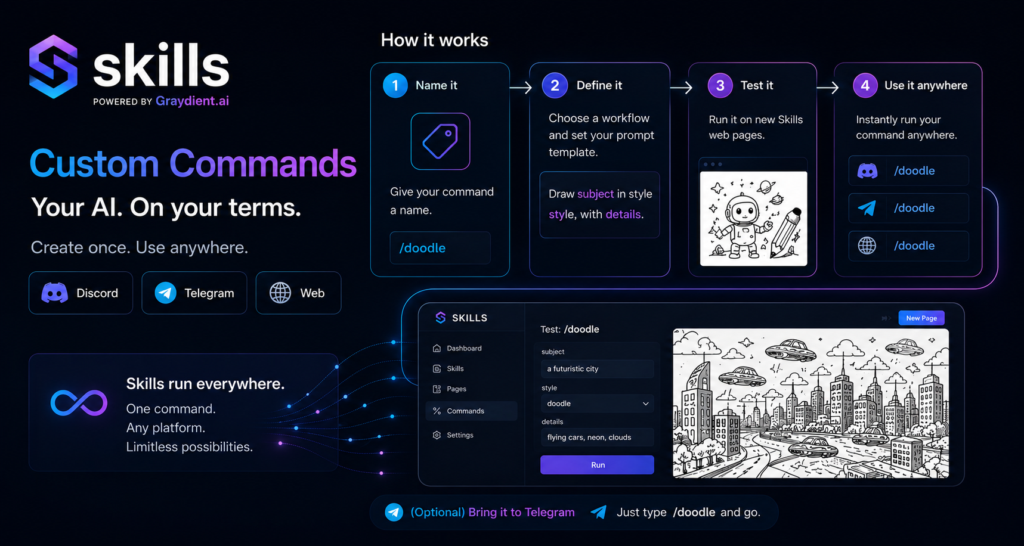
Table of Contents
Web Guide
Step 1 – Log in and open Skills
Go to my.graydient.ai/skills and click on any Skill. For this example, we’ll use Any2Real to turn an illustration into a photo.
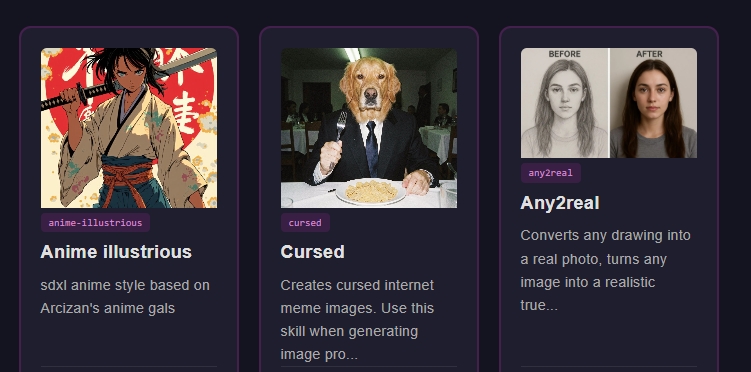
Step 2 – Follow the on-screen instructions
Each Skill has its own settings. For Any2Real: upload your image, add a short description (like “realistic brown hair”), then click Next.
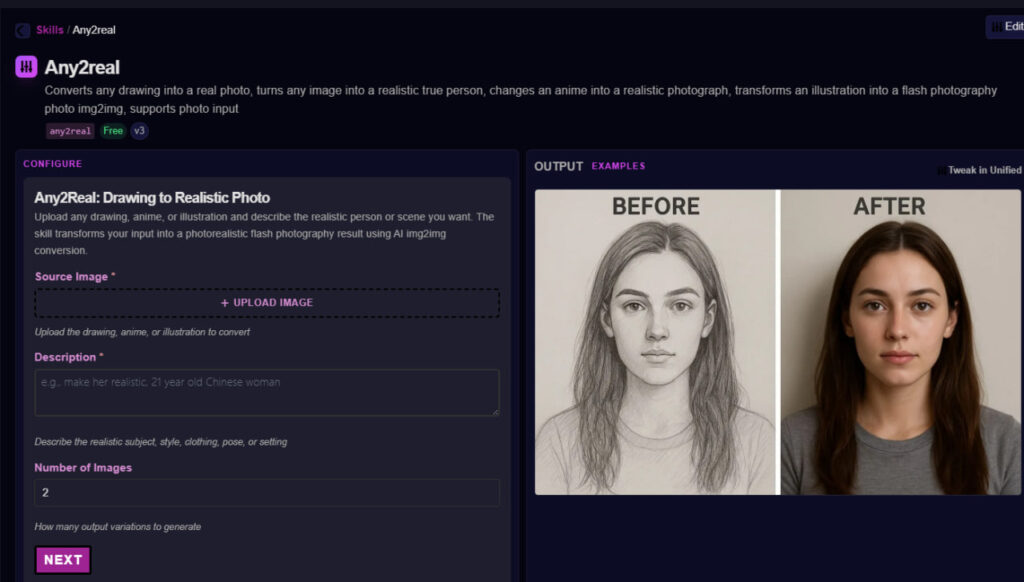
That’s it. Your result will appear on screen.
Voting and Tuning
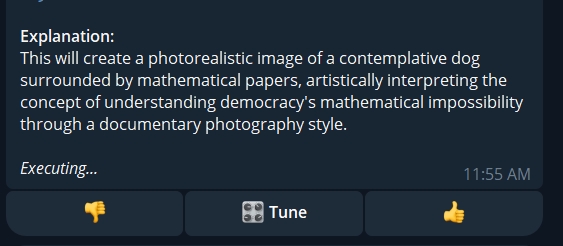
After each result, you’ll see voting buttons. Upvote outputs you like and they’ll be auto-selected more often. Downvote or mute ones you don’t want to see again.
The Tune button lets you re-roll with a different Skill or manage which Skills are muted for your account.
Telegram Guide
Skills are available in the PirateDiffusion Telegram bot.
Setup
- Start a chat with @piratediffusion_bot
- Type
/start - Type
/debugto confirm your bot is activated (not in free mode). Contact support if you need help with activation.
FOR THE AVERAGE PERSON
Learn how to use // followed by your prompt. Watch this video to learn how:
Text to Image / Video
Run a named Skill directly:
/anime-illustrious a warrior standing in the rain
Or use // and let the bot pick the best Skill automatically:
// a warrior standing in the rain
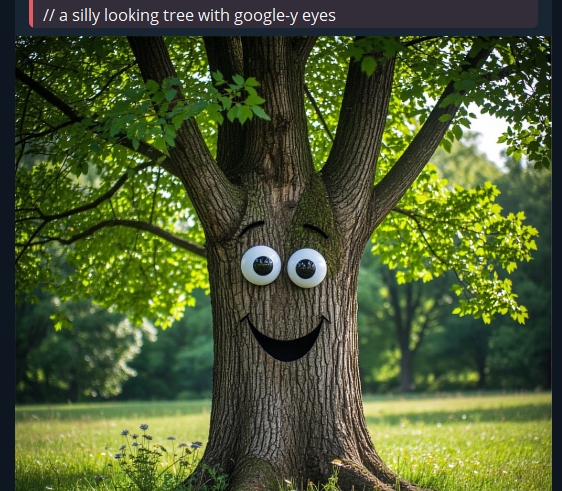
Image to Image / Video to Video
Drag your photo into the chat first, then reply to it with your command. Otherwise it doesn’t know which image you’re talking about.
/any2real a real photo of a brunette woman
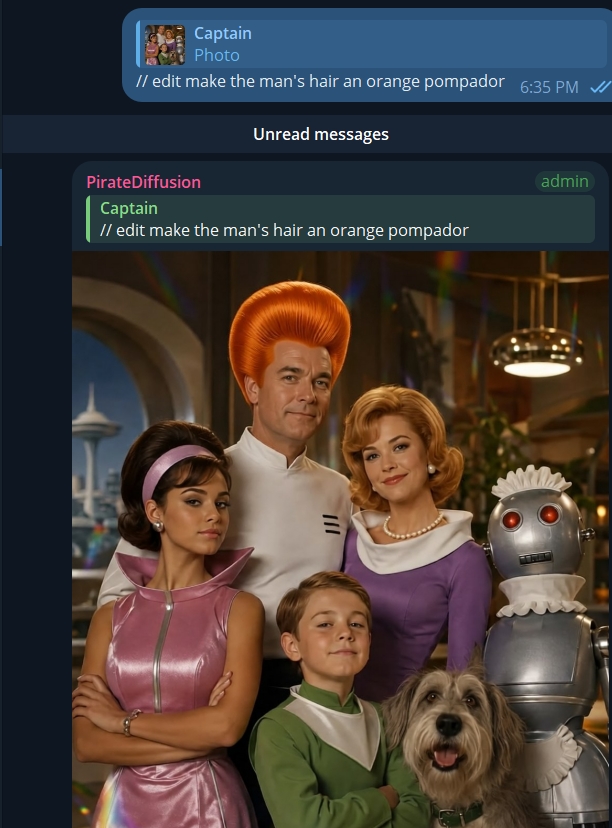
You can also use // with the word edit to make changes to a photo or video.
// edit, make her hair blonde
Tip: Including the word “edit” helps the bot understand your intent and pick the image editing workflow.
For Experts and Devs – Skill Creation Guide
Required learning time: 1-2 hours
Anyone can create Skills. There’s a learning curve, but you don’t need technical knowledge. Just edit templates and copy the commands in this section.
Skills combine LLM reasoning with ComfyUI workflows to build reusable, intelligent mini-apps. Before creating Skills, you should be comfortable with Graydient workflows and PirateDiffusion commands.
Tips for New Skill Creators
- Start small. Write a short set of instructions, test them, and expand from there. Keep notes on what worked and what didn’t.
- Test your examples before uploading. If a command doesn’t render correctly on its own, it won’t work reliably as a Skill either.
- If using an LLM to write your skill (use our /llm command in Telegram), give it the PirateDiffusion help guide as a reference. Without it, the model may invent unsupported parameters or hallucinate things that don’t exist or belong to another app (like Midjourney’s
--artag is irrelevant here) - Use bracket notation for workflows. If you put the workflow name in square brackets inside your skill, it sends the workflow’s help text to the LLM automatically.
FOR EXPERTS ONLY – MANAGE AND BUILD SKILLS
| Command | What it does |
| /skill prompt | Generates an image or video by automatically picking the best matching workflow for your prompt. Includes voting buttons. |
| // prompt | Shorthand for the above. Same result, less typing. |
| /skill /list | Lists available Skills (public and your own), sorted by your votes. |
| /skill /search | Search Skills by keyword. |
| /skill /run:name | Run a specific Skill by name, bypassing auto-selection. |
| /skill /show:name | Show the description of a Skill. |
| /skill /mute:name | Remove a Skill from your auto-select pool. Repeat the command to unmute. |
| /skill /tune | Manage your muted Skills from a simple menu. |
| /skill /ui:name | Converts a Skill created in Telegram into a web user interface. This is a one-time UI generation update. If you update the skill over Telegram, run this again to see the UI changes. |
| /skill /browser | Opens the web-based Skills browser. |
LOGIC REFINEMENT = LLM SWAPPING
At the heart of the skill functionality is a large language model. The LLM is the “brains” that controls the reasoning and prompt keyword expansion, the creativity engine that enhances your prompts.
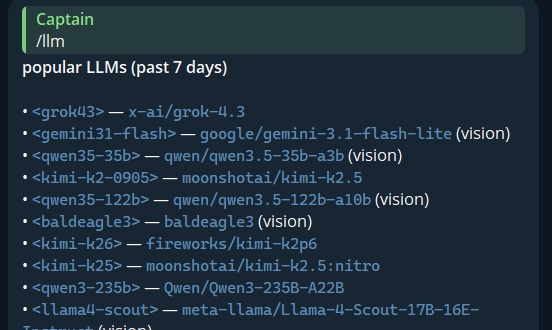
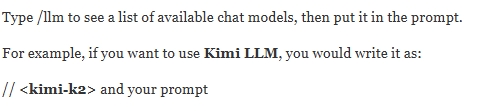
At the time of this guide, the default one is currently GROK, but Graydient hosts dozens of others. Just specify which LLM you want at runtime or in your example prompts when you create/update the skill.
Downloading and Inspecting Existing Skills
To see how any Skill is built, just look at the contents on the web down the page. The Metadata appears below the NEXT button if the skill is “Public”, meaning that anyone can use it, and the source code is free. In some cases, skill creators keep their secrets to themselves! It’s up to them.
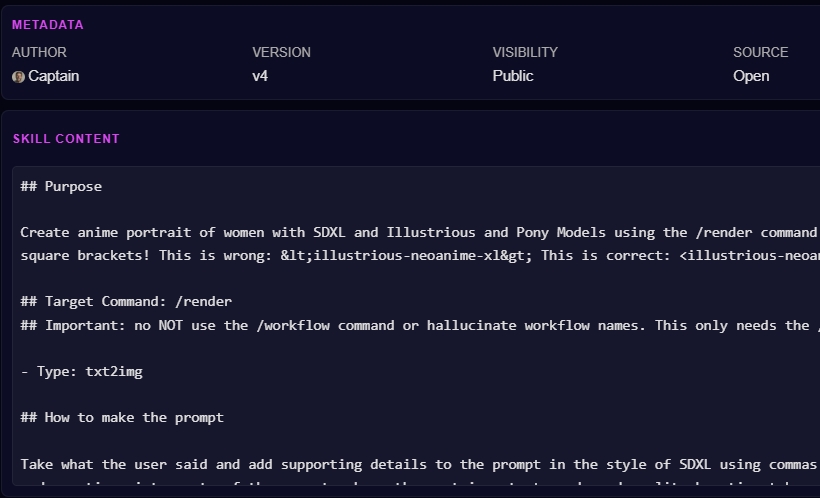
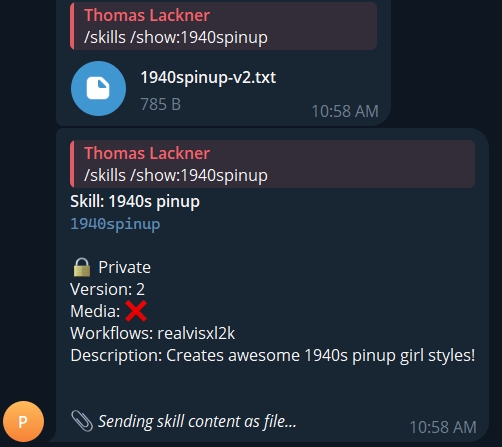
You can also do this over Telegram using the “show” command, like this:
/skills /show:cool-name-of-skill
Creating a Skill on the Web
Go to the Skills screen and click the New button in the top-right corner. Fill in the name, description, and prompt template. Skills created on the web are also accessible in Telegram (as long as you’re on the same account).
Creating a Skill in Telegram
This section is for experienced PirateDiffusion users who already know workflows, concepts, LoRAs, and advanced parameters. If those terms are new to you, start with the PirateDiffusion beginner’s guide first.
Step 1: Download a template and open it in a text editor.
Image templates:
- Simple FLUX 2 skill template
- Simple SDXL image skill template
- Detailed SDXL-illustrious skill template
- Intermediate: two-image editing with QWEN
Video and music templates:
- Simple WAN video skill template
- Advanced music skill (Heart Mula)
- Advanced LTX2 video skill (made with Kimi Code)
There is no single correct format. What matters is that your render settings, workflow syntax, concepts, and parameters are accurate.
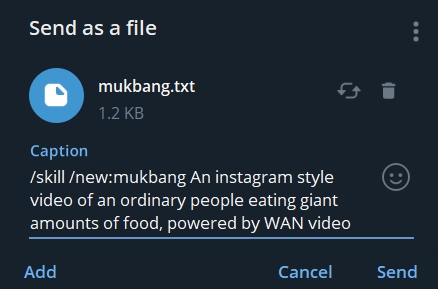
Step 2: Upload the file to PirateDiffusion with the /skill /new command.
Open your private chat with @piratediffusion_bot, attach your text file, and send:
/skill /new:cool-name-of-skill Your skill description goes here
Then run your skill with /your-skill-name
— you’ve just created a custom command!
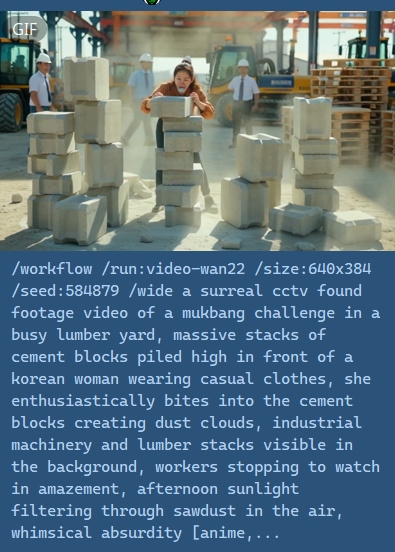
The resulting image will show you the full workflow prompt behind the scenes, but you didn’t have to type any of that. It was generated with the skill template you or someone else already created. No parameters to remember or type again.
/mukbang an old asian woman eating cement in a busy lumber yard
ADDING IMAGES TO YOUR SKILLS IN TELEGRAM
MAPPING COMFY API FIELDS
Each Graydient workflows uses different variable names for image inputs, because there’s many people in the community making it their way. You can assume that it’s probably /image1: but it may be something else. To be sure, inspect the target workflow first like this:
First, run /workflow /show:name
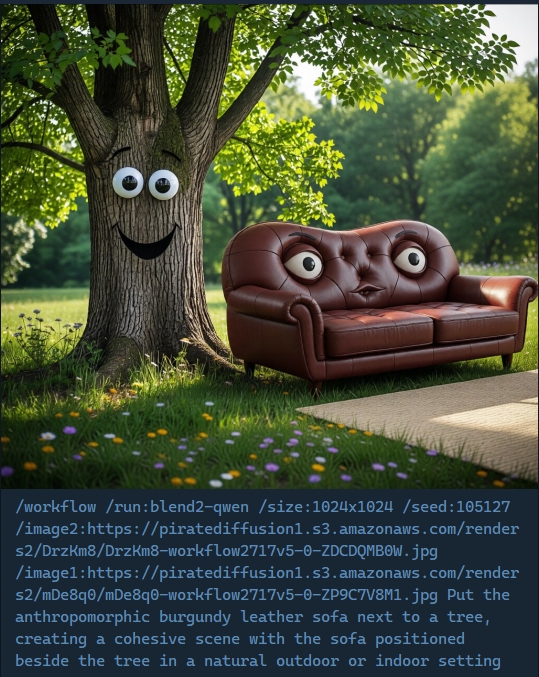
For example, the blend2-qwen workflow uses /image1 and /image2. Your skill template should reflect that:
# edit two images into one, edit 2 images into 1, edits 2 images together or control 2 consistent characters in one static image, such as moving objects or people together in one photo, or fusing them together, or posing two characters. The two images use the variables 'image1' and 'image2' followed by their photo IDs.

To change an image, use `blend2-qwen`:

```
/wf /run:blend2-qwen /image1:Ixyz123 /image2:RDrzKm8 edit two images into one, put the sofa in the first photo next to the tree in the second photo
```

Refer to the source image with /image1:IMAGE_ID and require a second photo as /image2:IMAGE_ID2

Transform the users prompt into an instruction for how to edit an image.

Examples:

User input: edit 2 images, put the sofa in the first photo next to the tree in the second photo
Command: /wf /run:blend2-qwen /image1:IMAGE_ID /image2:IMAGE_ID2 A sofa next to a tree in the garden

User input: pose the woman in the photo next to the man in the other photo
Command: /wf /run:blend2-qwen /image1:IMAGE_ID /image2:IMAGE_ID2 Create a new photograph of two persons. Femenina from image 1 is standing behind him. Machoman is holding a coffee mug.
Note on image inputs: Use placeholder values like IMAGE_ID in your examples, not real photo IDs. If you use real IDs, the LLM will copy them literally instead of substituting the user’s actual photo.
After writing the template, enable media support for the Skill:
/skills /media:cool-name-of-skill
For video-to-video skills (like extend or upscale), use /initvideo:VIDEO_ID instead of /initimage.
Image-to-Image template example:
# Image Edits and Changes
To change an image, use `edit-qwen`:

```
/wf /run:edit-qwen /initimage:Ixyz123 Change the shirt to red
```

Refer to the source image with /initimage:IMAGE_ID

Transform the users prompt into an instruction for how to edit an image.

Examples:

User input: Change the shirt to red
Command: /wf /run:edit-qwen /initimage:IMAGE_ID Change the shirt to red

User input: short girl
Command: /wf /run:edit-qwen /initimage:IMAGE_ID Make the girl shorter
For image-to-video templates, see: image-to-video3 example
Discord Support
Skills you create on the web or in Telegram also work with the BitVector Discord bot once it’s connected to your Graydient account. BitVector may have its own Skill features, so check their guides for details.
FAQ
How can Skills benefit my work?
Think of Skills as programmable AI macros. They use LLM reasoning to expand your intent, auto-select the best model and workflow, and handle all the technical prompt syntax automatically. You just describe what you want.
Skills support over 25,000 models and workflows including Wan, HunYuan, Flux, SDXL, Qwen, and Z-Image. They work with file inputs, structured prompts, and can be shared publicly or kept private.
Are my outputs private?
Yes. Your 1:1 chats with @piratediffusion_bot are private by default. Skill outputs are standard prompts, but the Skill code that generated them is not visible to others.
One thing to note: using /skills /list inside a group chat will show the names and descriptions of your Skills to others in that group.
What commands can I use inside a Skill?
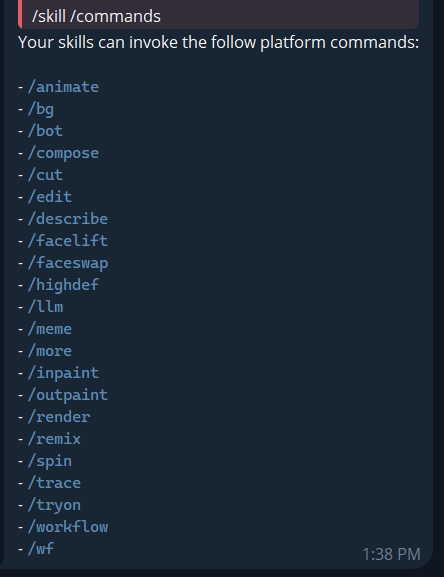
Not every PirateDiffusion command works inside a Skill. To see the full list of supported commands:
/skills /commands
Who can create Skills?
Everyone can create Skills. Your Skills are private by default. Public Skills are maintained by the Graydient moderator team and are open source, meaning you can inspect, download, and modify them as your own.
During the current beta period, publishing Skills publicly is limited to the moderator team to keep quality high.
How does voting work?
Upvote or downvote any Skill output. Your votes affect how often Skills get auto-selected, so over time the system learns your preferences. Votes are anonymous and also help Skill creators identify popular or broken Skills.
How do I share a Skill with someone?
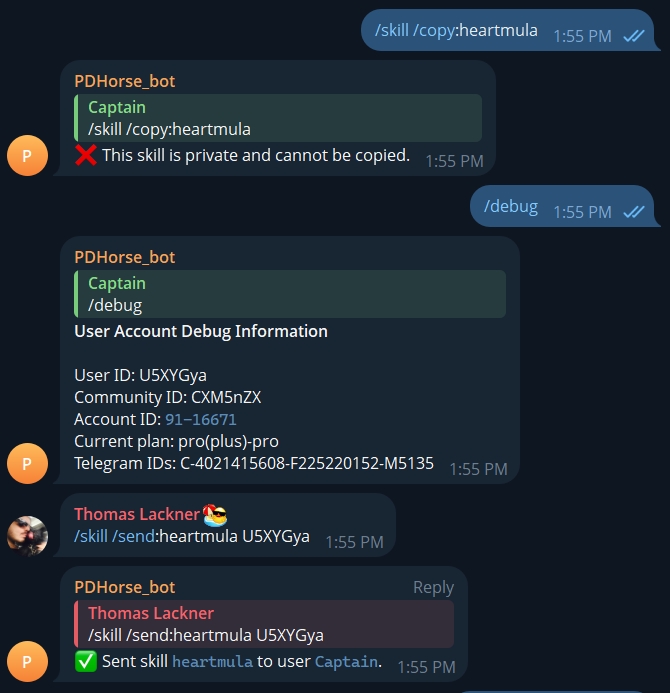
You can copy and send a Skill to a friend using their community ID (they can find it by typing /debug in their bot). Use the copy and send commands shown below.
Note: Skill creators can set privacy and open-source settings that may block copying or sending.
Can I sell Skills?
Yes. Plus members can set a price on their Skills and keep the source code private. Priced Skills cannot be copied.
Sales are peer-to-peer, and Graydient takes no commission. You collect payment on your own, then use this command to transfer a copy to the buyer:
/skill /send:skillname Uxyz123
Commerce tools may be added in the future.