
Graydient Studio is here.
Graydient lets you generate video, images, and music. Now you can put them all together too, right in your browser.
Security camera footage from inside a cramped bodega, grainy CCTV quality with timestamp overlay in the corner. A massive brown horse suddenly gallops down the narrow aisle, knocking over displays of plantain chips and canned beans. The horse's hooves clatter on the linoleum floor as customers scream and dive out of the way. The camera angle is fixed from high in the corner, wide-angle lens capturing the entire chaotic scene.
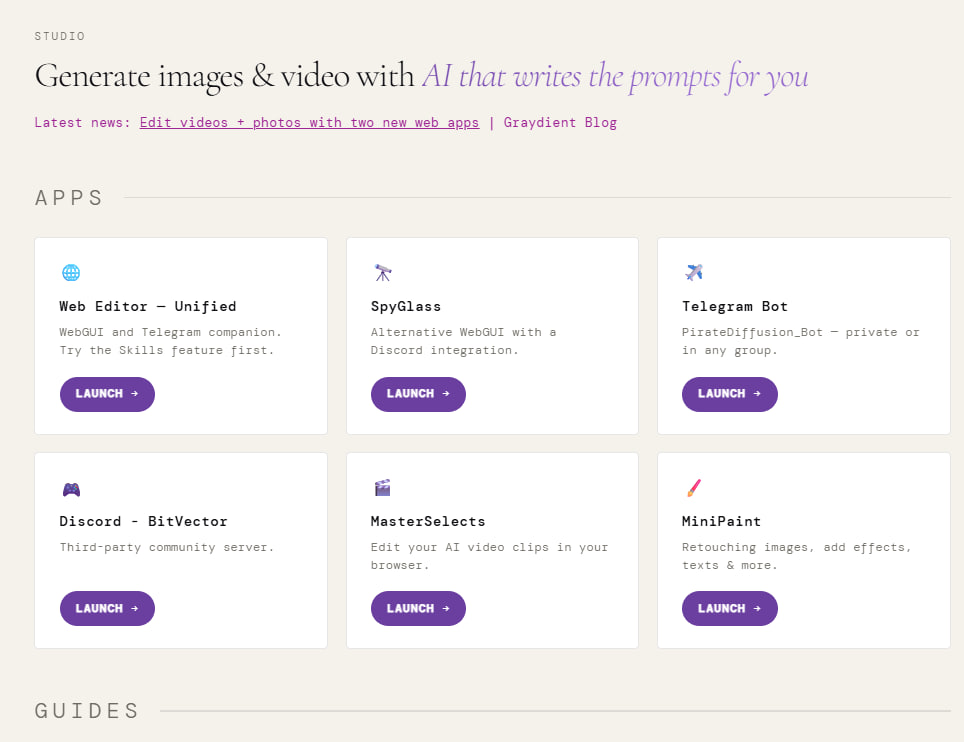
Introducing Graydient Studio, a suite of browser-based editing apps that let you import your AI creations, refine them, and share them without installing a thing. Available today on every plan. Starting with two solid tools: MasterSelects for video and MiniPaint for photos.
Every subscription now includes browser-based video and photo editing, no downloads required.
Your existing Graydient work AI work is already there waiting for you. Edit it, share it. Done.
WEB ACCESS
First, login: https://my.graydient.ai/switch
Then:
Video Editor: “MasterSelects App” – https://my.graydient.ai/studio/video
Image Editor: “MiniPaint App” – https://my.graydient.ai/studio/image
TELEGRAM ACCESS
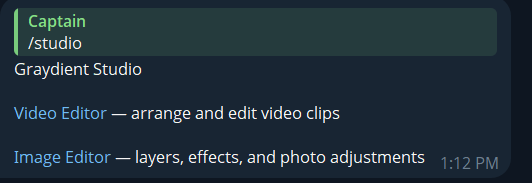
You can also conventiently them from our Telegram software with this command by talking to @piratediffusion_bot
/studio
You’ll see two secure magiclinks that open your web browser for your convenience, no extra step to login is necessary.
How to use MasterSelects Video Editor
Login to Graydient first, then: https://my.graydient.ai/studio/video
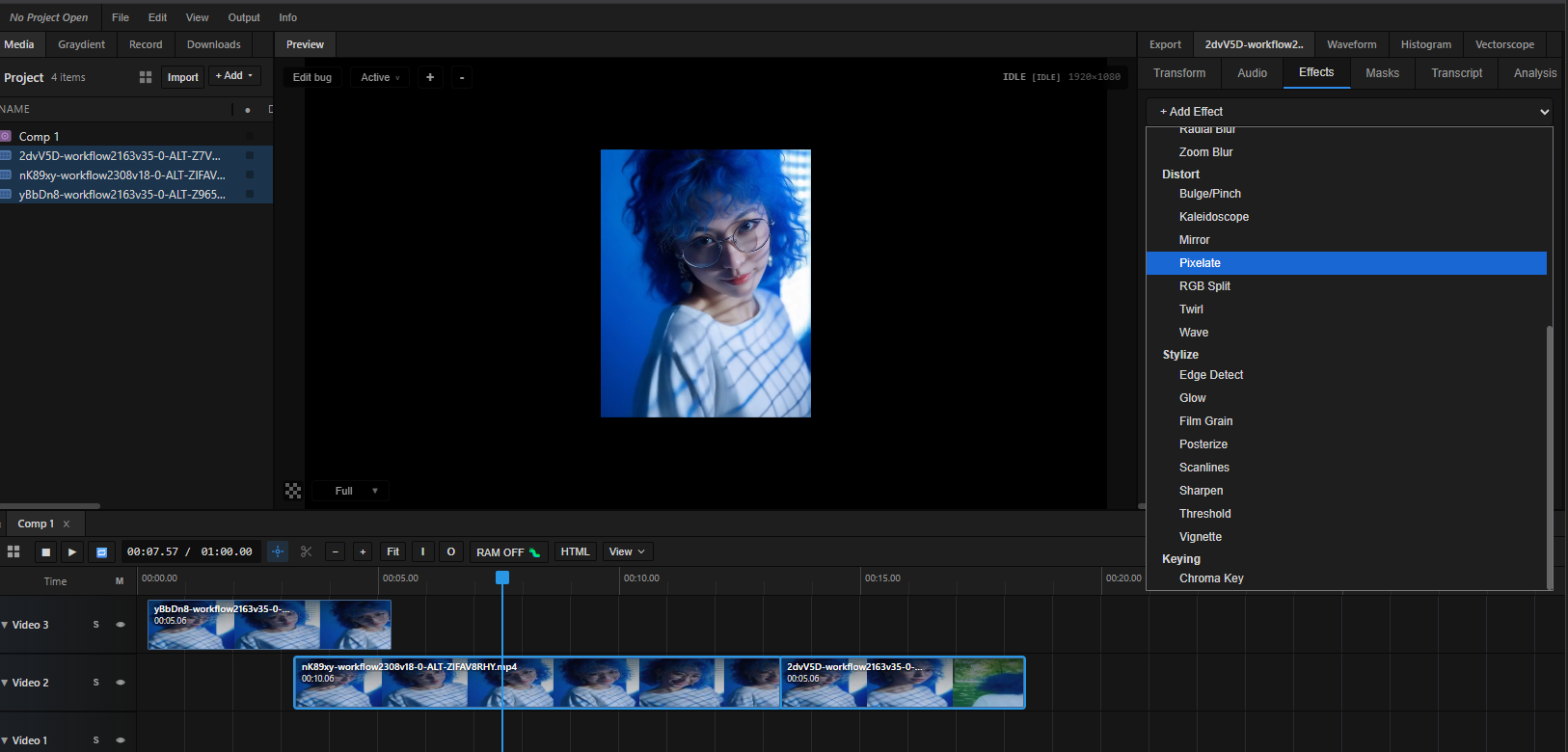
MasterSelects is a Graydient fork of Roman Kuskowski’s most excellent free video editing program. We’ve integrated it directly into our platform so that you can edit the media you’ve created easily without having to download and import it manually, it’s all right there in the Graydient Tab.
Prerequisites
You’ll need a Graydient Plus account that’s fully activated. If you haven’t signed up yet, create an account right now.
Create some media on other Graydient apps first, like Unified Editor, BitVector, SpyGlass, or PirateDiffusion Telegram Bot. If you don’t have clips yet, go create some first on any of our apps. Remember, you can convert any image into a video with our powerful Skills or Workflows with any of those applications.
Getting Started with MasterSelects
- After logging in, click the Graydient tab on the top left menu
- Find the clips that you want to use for your movie and click the download arrows in the ‘Recent Renders’ to import each media object. You can also search for your old creations right from this menu.
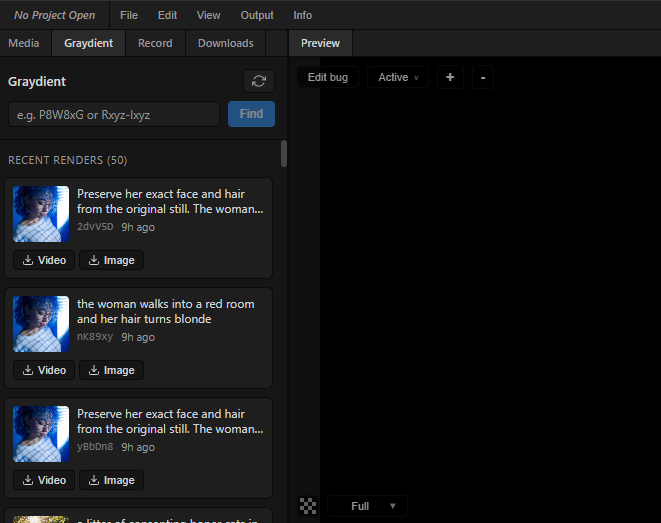
After clicking the download, they’ll be available in the Media menu.
(Optionally) rename the clips for ease of use and drag them to the timeline
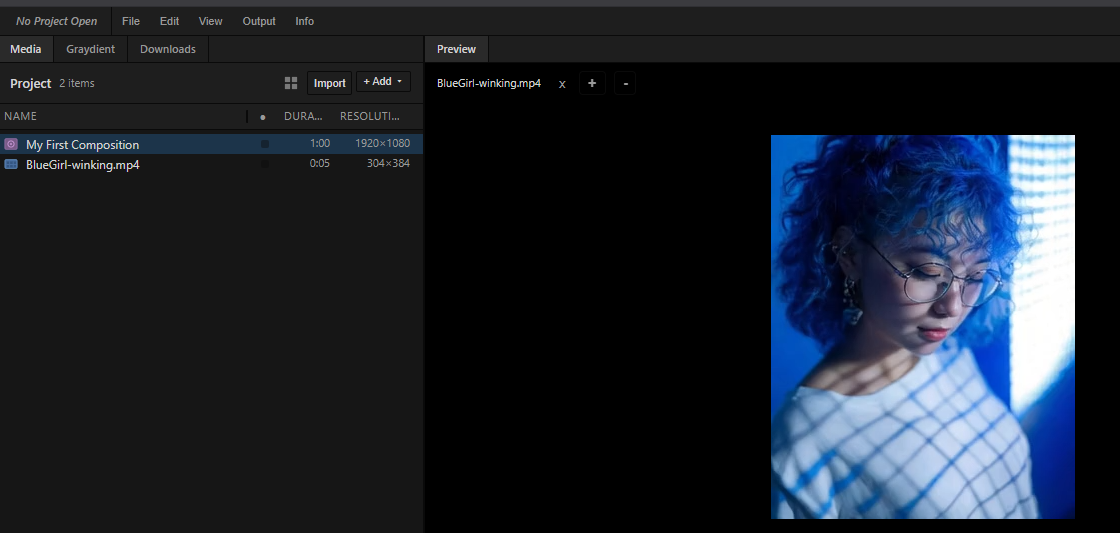
After the clips are importend and you’ve organized your composition area, click and drag them into the timeline.
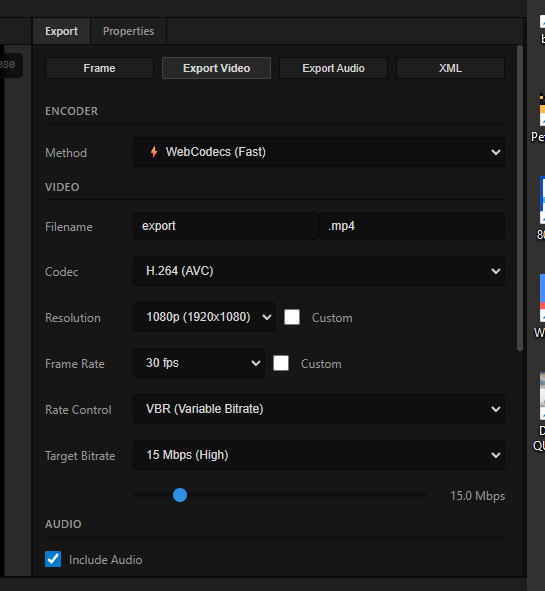
You can find various effects and export options on the right. Clicking a media object changes the properties panel. Releasing a media clip shows you properties of the entire project.
To resize media, click the media in the timeline and then click the small Fit button above the timeline. You can then click and drag the corners in the Preview area. You can hold shift to constrain proportions, use your mouse wheel to zoom, and also hold Alt to pan the entire canvas over.
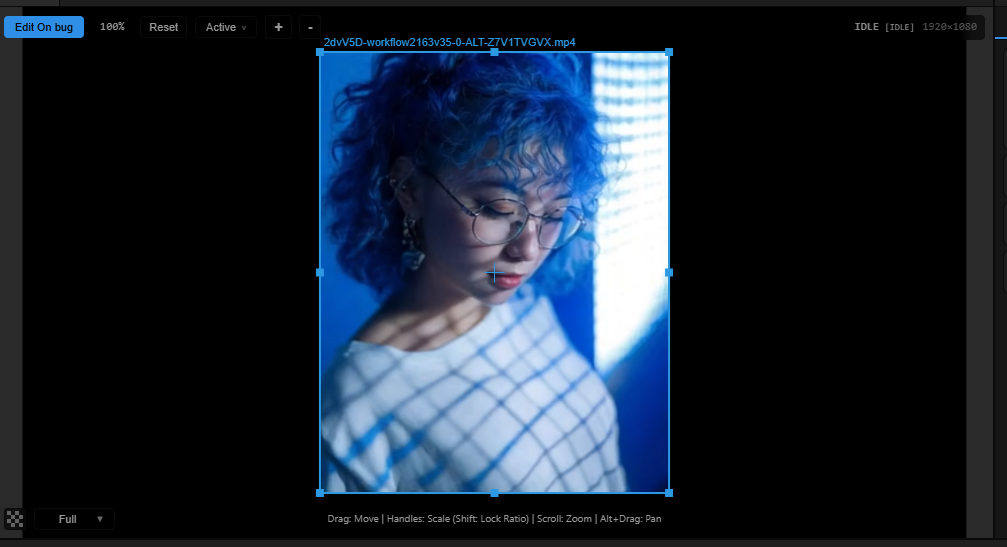
To preview your creation, click your spacebar or the play buttons. To rewind the movie quickly, click the stop button.
When you’re finished, go to Output > Export on the far right to save the file to your device. That’s it!
Limitations: This software is still in development, so some features like Transcription, RAM drive, and Project Saving aren’t available yet. Please check our changelog and follow our announcements channel in Telegram for announcements. New workflows appear there first.
How to use MiniPaint Photo Editor
Login to Graydient first, then: – https://my.graydient.ai/studio/image
First, locate the Graydient Import menu on the far right. Expand it and load your media.
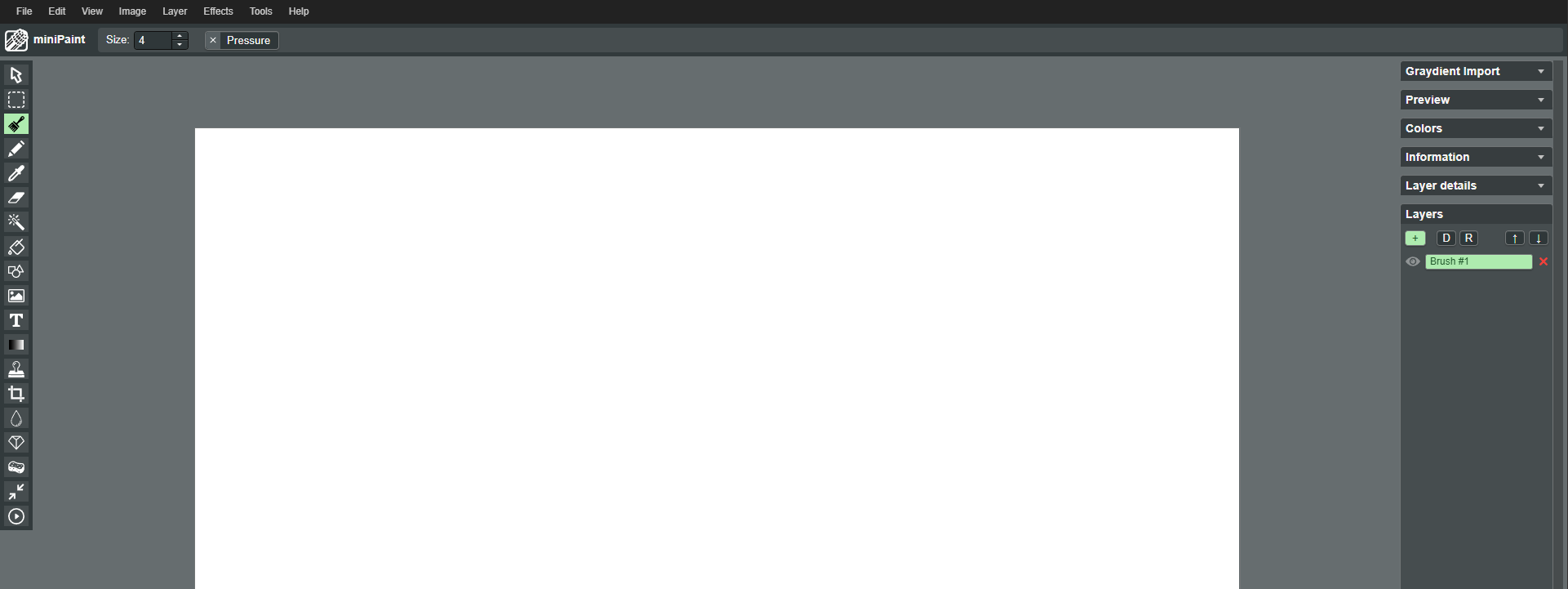
If you’re familiar with programs like PhotoShop, you’re going to be familiar with how MiniPaint works.
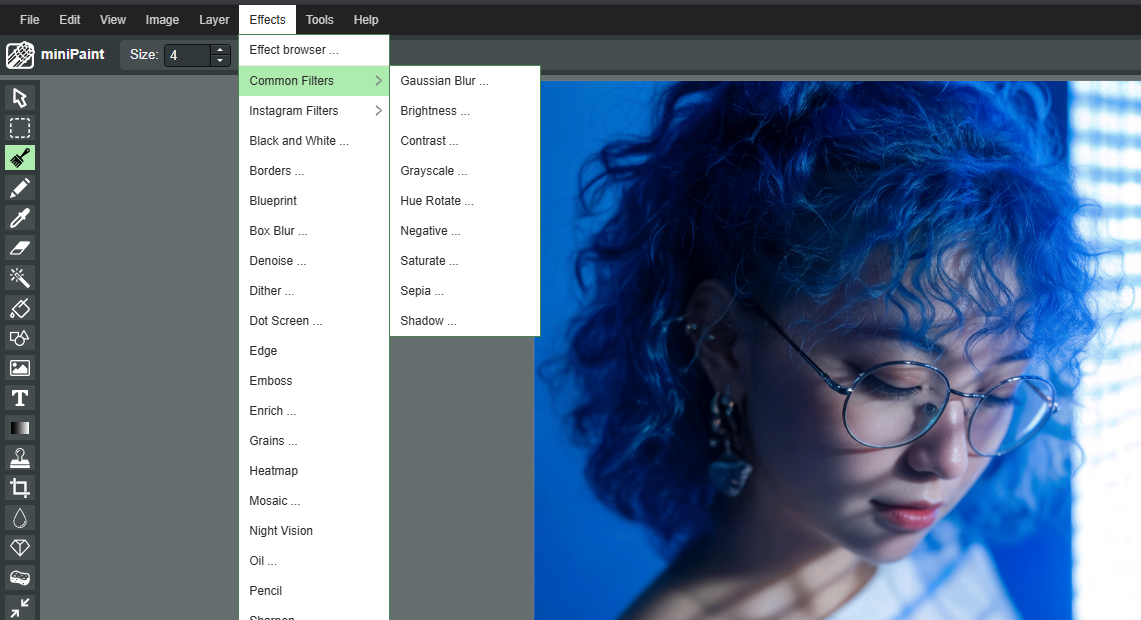
At the top, you’ll find menus for Filters and other image editing options. Use these menus to add effects and color corrections to your images, or use the tools on the left for fine touch-ups using your mouse.
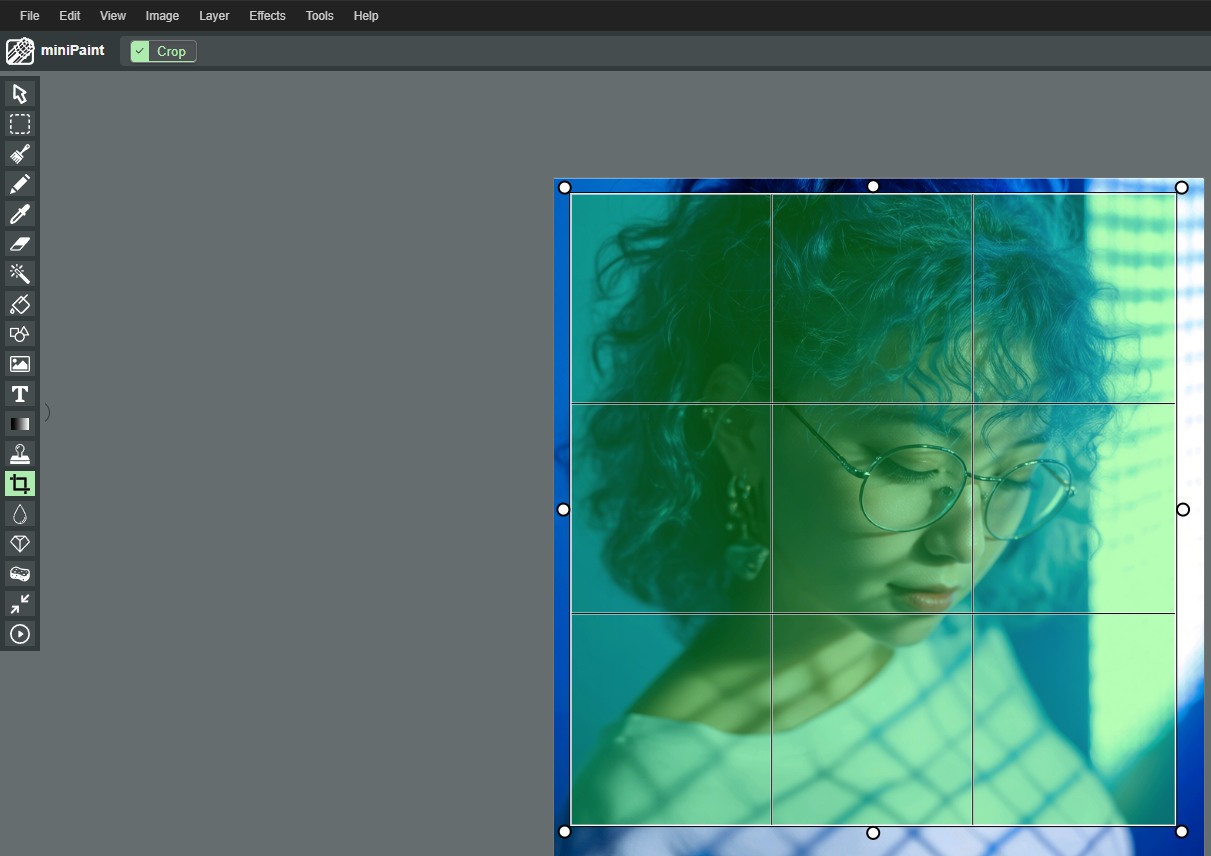
When you select a tool from the left menu, look for action buttons near the MiniPaint logo.
For example, when I choose the Crop tool, the button to complete the crop is that checkbox label next to the MiniPaint logo.
MiniPaint supports unlimited Undo (Control-Z or find it in the Edit menu at the top), so if you make a mistake, keep pressing Undo and you’ll get back to your happy place.
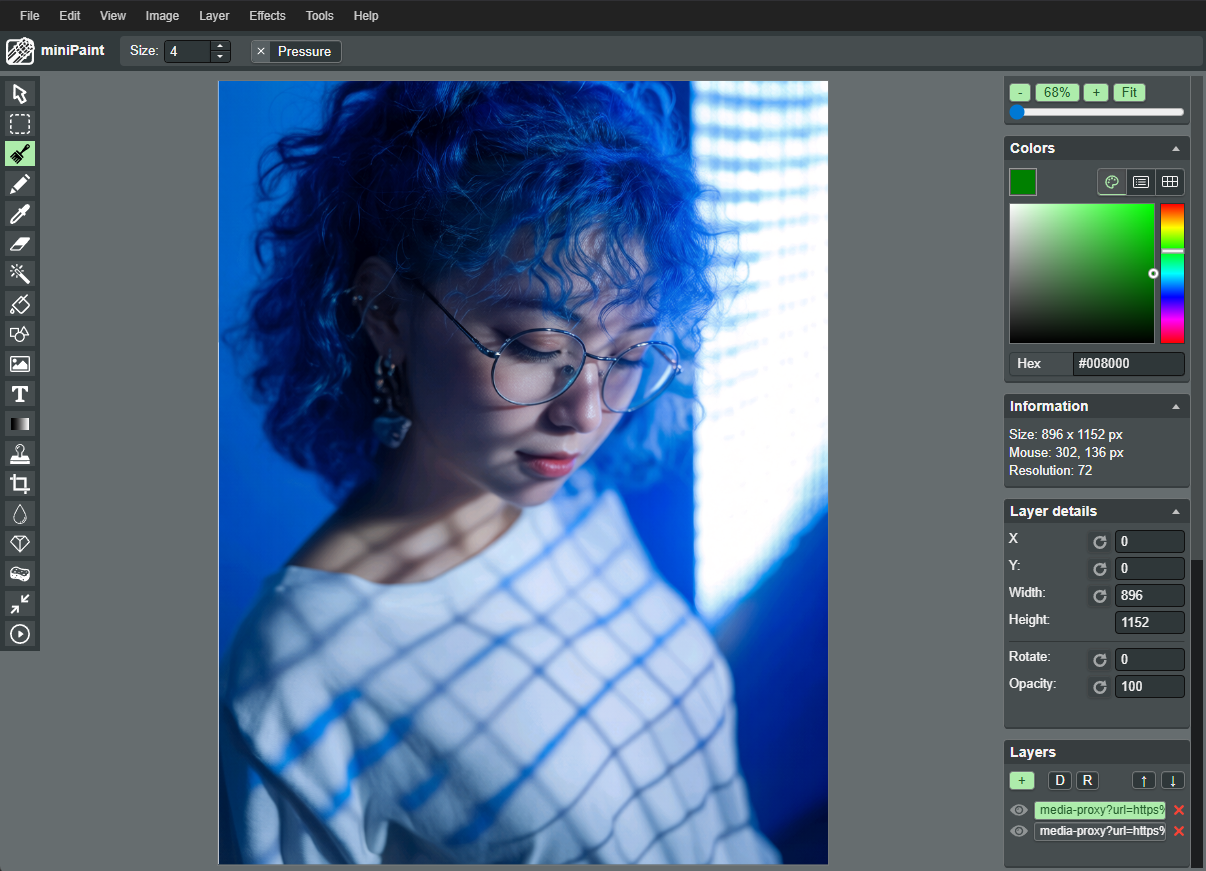
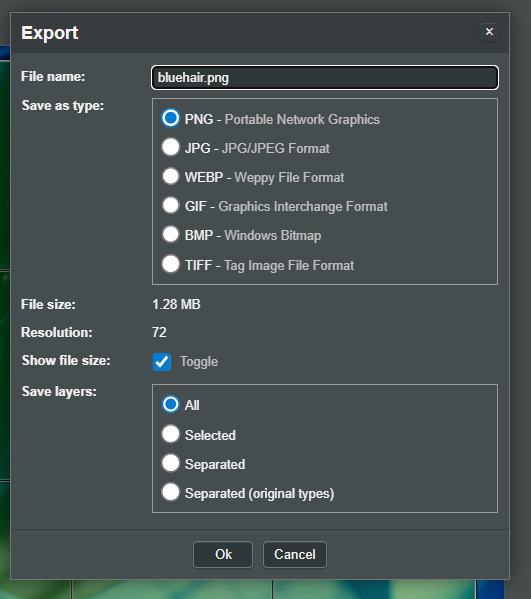
And those are the basics. When you’re finished, export your creation from the File menu.
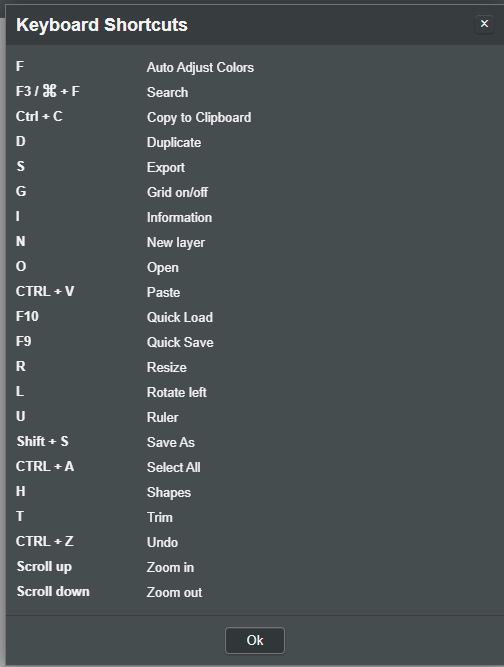
To speed up your workflow, there’s also handy keyboard shortcuts:
For more MiniPaint tips, check Youtube:
We hope you’ll find Graydient Studio apps like MiniPaint and MasterSelects save you time and make working with your media easier. Please tell us how we can continue to improve our service by joining the member’s Telegram channel, located in your Member’s Dashboard.
Thanks for your continued support!