
400+ ready-made AI workflows, built into the Graydient apps
A workflow is a ready-made recipe for one kind of job: turning a description into a picture, animating a photo into a video, changing a picture by describing the change, or writing a song. Graydient keeps more than 400 of them ready on its GPUs, and the apps included in your subscription already have them built in. You pick a workflow, type what you want, and the result comes back. There is nothing to install or set up.
Pick a workflow, press Render, on the platform you like
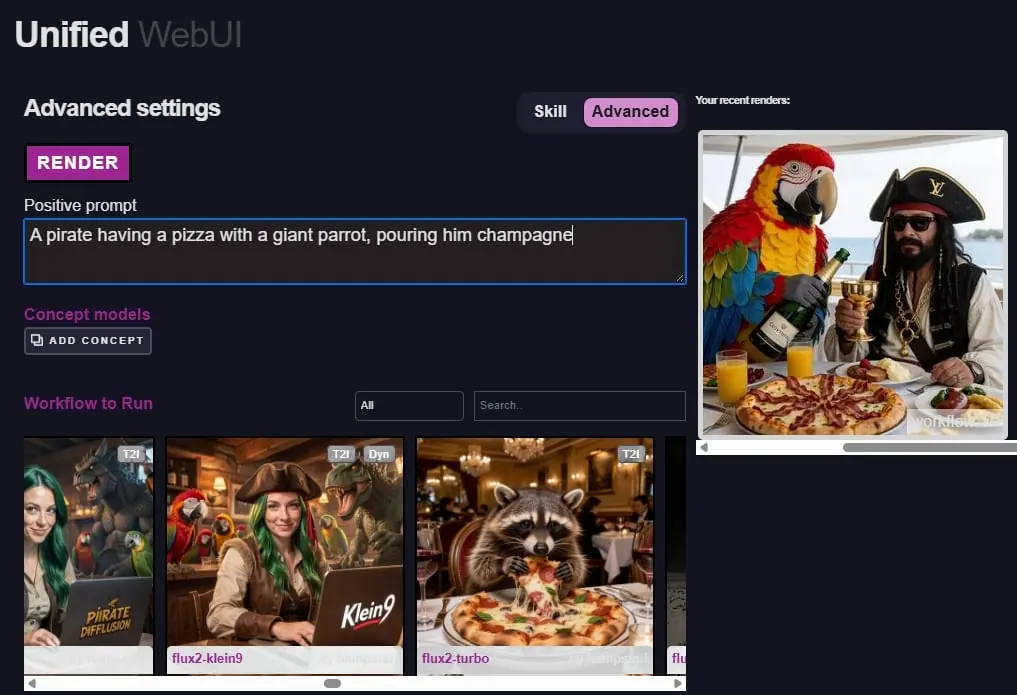
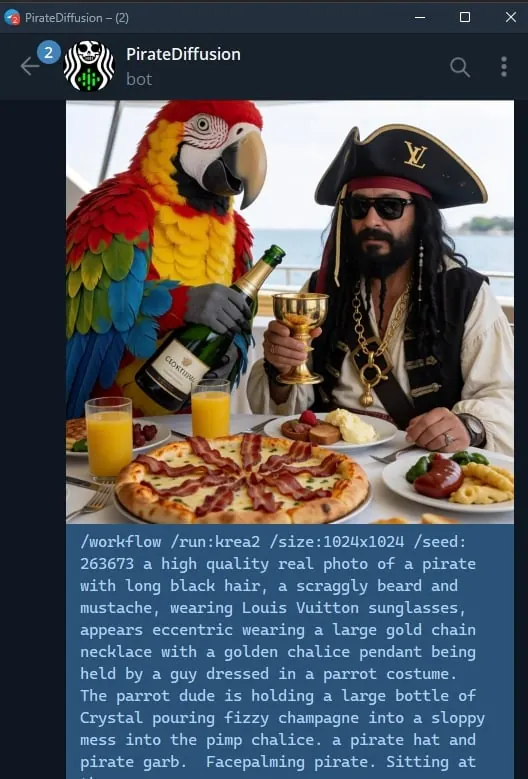
Workflows are picked from a menu and run right away: no configuration, no API knowledge and no ComfyUI interface. In a web browser you type a prompt, choose the workflow and press Render. The same workflows answer on the platform you already use, Discord, the web or Telegram, with the same result.
What you can make, and where
A few of the things the workflows do, with three example workflows for each; a card opens the workflow on ModelTrends. Every app shows the whole catalog in its workflow picker.
Make a picture from a description with Flux, Krea 2 or Qwen Image
Type what you want to see and pick a look: realistic photo, anime, illustration, fantasy art, pixel art.
Animate a photo into a video with MiniMax H3, LTX-2 or Wan 2.2
Bring a still picture to life, animate from a first to a last frame, make a seamless loop, or add a voice to a talking portrait. LTX-2 adds sound.
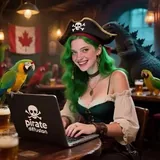
Change a picture by describing the change with Flux Kontext or Qwen Image Edit
Swap clothes, weather, pose or text, add or remove objects, or extend the picture past its edges.
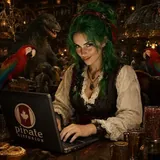
Keep the same character across new scenes
From one or two photos, put the same person or character in new scenes, make a character sheet, or swap a face.
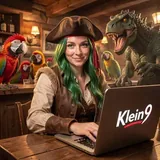
Make a video from a description with MiniMax H3, LTX-2 or Wan 2.2
Short clips from a few sentences, realistic or anime, and tools to extend, restyle or upscale a video you already have.
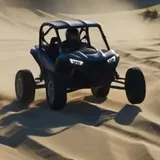
Upscale and restore pictures, up to 8K
Enlarge a picture with a dozen upscalers, restore an old photo, remove the background, or turn a picture into stereoscopic 3D.
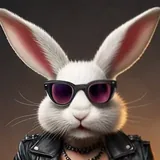
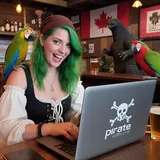
Write a song with lyrics, clone a voice or lip-sync a video
Full songs from ACE-Step and MiniMax Music, text to speech, voice cloning, and lip sync of a video to a track.
What the workflows do
A workflow is a finished job, not a model: it loads the right models and LoRAs, runs the steps and hands back the result. These are the kinds of jobs the workflows do, with the names the apps show in their workflow pickers. In PirateDiffusion a name is a command (/workflow /run:name).
Text to image with the big base models
Type a prompt and get pictures from Flux, Flux 2, Krea 2, Qwen Image, Z-Image, SD 3.5, HiDream, Lumina, Ernie, Fire, PixelDiT and Ideogram 4, most with LoRA slots.

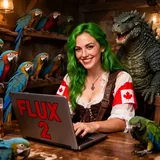
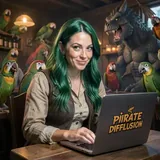
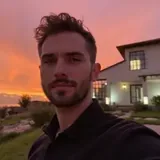
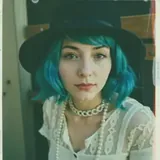
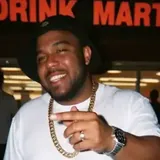
Realistic photos
Phone snapshots, film and analog looks, ordinary everyday scenes, fashion and portrait fine-tunes that look like a camera took them.
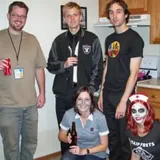
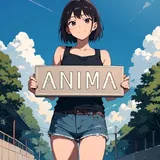
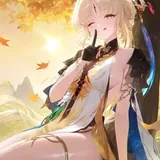
Anime, comics and illustration
Anima and its fine-tunes, Illustrious and NoobAI mixes, Niji and Ghibli styles, Western comics and cartoons.
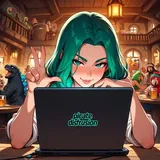

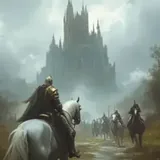
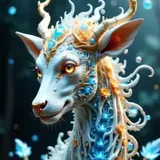
Art styles, fantasy, design and patterns
Fantasy and D&D painting, sci-fi and cinematic looks, flat corporate vectors, pixel art, game character portraits, seamless patterns and 180-degree panoramas.
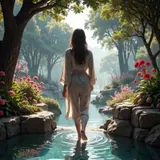
Edit a picture by describing the change
Change clothes, weather, pose or text, remove or add objects, inpaint with a mask, extend the canvas (outpainting), with Flux Kontext, Qwen Image Edit, Flux 2 Klein and more.
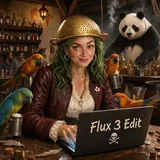
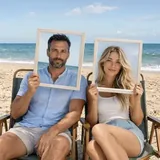
Consistent characters, references and swaps
Put the same person in new scenes from one or two photos, make character sheets, swap heads or faces, blend two or three reference pictures, transfer a style.
Guided generation: ControlNet, sketches and outlines
Keep a pose, depth or edges from a reference, turn a sketch or outline into a photo and a photo into line art, make QR illusions and pixel art.
Upscale, restore and image tools
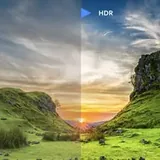
Enlarge up to 8K with a dozen upscalers, restore old photos, remove backgrounds, resize and crop, split a picture into layers, make stereoscopic 3D.
Text to video
Clips from a prompt with MiniMax H3, LTX-2 (with sound), Wan 2.1 and 2.2, Hunyuan and Cosmos, plus anime and turbo fine-tunes.
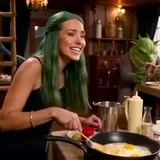
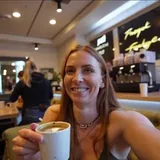
Animate a picture (image to video)
Bring a still to life, animate between a first and a last frame, make seamless loops, use several reference images, add a voice to a talking portrait.
Edit, extend and restyle video
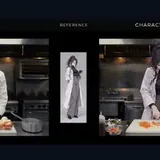
Change a video by describing it, extend it, turn real footage into anime and back, replace a character or a face, transfer motion to a photo, pull out frames.
Video upscaling and 3D
Upscale and double the frame rate of a video, convert it to stereoscopic 3D, turn a picture into a textured 3D model or a turnaround for 3D work.
Speech, voice cloning and lip sync
Text to speech, clone a voice from a sample, lip-sync a video to a track, add a soundtrack to a silent clip, make a video from a sound, pick a sound effect.
Music
Full songs with lyrics from ACE-Step, MiniMax Music, HeartMula and YuE, instrumentals, cover versions, music editing and visualizers.

A name with a link opens that workflow's own page, with its graph drawn node by node. And many more: the list above is the safe-for-work part of the catalog, and new workflows are added as models come out. The workflows endpoint of the API returns the live list, and every app on this page shows it in its workflow picker.
For developers and technical folks
The rest of this page is for people who build on Graydient. The apps above do all of this for you; read on if you want to call the workflows from your own code, or want to know exactly what Graydient hosts.
To be exact: there is no node canvas on Graydient. You do not open a graph, drag nodes or install custom nodes here. The workflows are already built and installed; what you do is call them.
A ComfyAPI workflow is a graph of boxes (load a model, encode the prompt, sample, decode), and running it needs a GPU with the right models and custom nodes installed. Graydient does that part for you. Its GPUs hold more than 400 ready workflows, from text to image with Flux, Qwen and SDXL to Wan, LTX and MiniMax video, image editing, upscaling and audio, each kept working as the models and nodes update.
Each workflow is a backend endpoint. A call names the workflow and gives it a prompt, an image or a few options; Graydient runs the graph on its GPUs and returns the result through the API, or into the app that made the call. That is how PirateDiffusion runs a workflow from a Telegram command, how Vector does it from Discord and how the Unified Editor does it from a form.
One of the 400+: the Krea2 workflow, drawn as it runs
This is what a hosted workflow looks like inside. Krea2 loads its base model and up to five LoRAs, encodes your prompt, samples eight steps and decodes the picture; the highlighted pills are the options a call can set, such as the size, the seed or the number of images. Every workflow in the table above is a graph like this one, already installed and kept working on our GPUs. Your app, bot or script only sends the call.
A read-only view. The highlighted pills are the options a call can set. See the Krea2 workflow page →
| Graydient hosts | Graydient does not host | |
|---|---|---|
| The workflows | 400+ graphs, installed and maintained on the GPUs | A canvas where you build or edit graphs |
| The models and nodes | Every checkpoint, LoRA and custom node each workflow needs | A node manager or a place to install your own custom nodes |
| Running a workflow | One API call: the workflow name, a prompt, an image, options | A Run button inside an embedded node-editor window |
| The interface | Whatever the calling app draws: Telegram, Discord, a web page, your code | A node editor's own user interface |
| The result | The finished image or video, returned to the caller | Intermediate node outputs or a live graph preview |
Where it runs
- From the Graydient API, on the Video Max plan: your own scripts, servers and apps.
- From PirateDiffusion in Telegram, with the /wf command.
- From the Discord bot (Vector), or from the pro studio (SpyGlass) and the easy chat creator (Prism) in a browser.
- From the Unified Editor and MasterSelects, as the workflow pickers.
Why it is better with Graydient behind it
- No GPU to rent, no node-editor install to keep alive, no custom node that breaks after an update.
- The newest video and editing models arrive as new workflows, ready to call.
- Unlimited calls on a flat monthly plan; dedicated GPUs for business deployments.
- Your own interface stays yours: the workflow is just the engine behind a button.
How to start
- Pick the Video Max plan below; it includes the personal API.
- Read the API documentation and list the workflows with the workflows endpoint.
- Send a render call that names a workflow, with your prompt and options.
- Receive the result through the callback or poll the render, and show it in your own app.
Questions
Can I open a node editor on Graydient and edit the nodes?
No. Graydient does not host a node editor or any node canvas. It hosts finished ComfyAPI workflows and runs them when they are called. If you want to build graphs, do that in a node editor on your own machine or a rented GPU; Graydient is for running the result at scale.
Can I upload my own ComfyAPI workflow?
Business deployments can have workflows installed for them; ask through the contact page. The personal API calls the preloaded set. You can install your own models and LoRAs on every plan, and many workflows take them as options.
How is a workflow call different from a normal render call?
A normal render names a model and takes a prompt. A workflow call names a workflow instead, and the workflow decides which models, nodes and steps run. The call and the answer travel the same way: a request to the API, and the result back through a callback or by polling the render.
Do I need to know how to build workflows to use them?
No. In PirateDiffusion a workflow is a command, in the Unified Editor it is a menu item, in your code it is a name in a request. Knowing what the workflow does is enough.